A supply chain attack is the one you let in yourself. The malware does not come through a vulnerable form or a guessed password. It arrives inside an update from a plugin vendor you already trust, through the update button WordPress keeps reminding you to press, and from then on it runs with all the trust the original plugin had.
That is what makes it one of the hardest attacks to defend against. Every check a site normally relies on says yes: the package comes from the vendor’s own server, it is the release the vendor published, and an administrator asked for it. In 2026 alone, compromised releases of Rank Math SEO PRO, Smart Slider 3 Pro and ShapedPlugin’s Pro plugins reached customer sites through the vendors’ own downloads and updates. The most recent, Rank Math SEO PRO 3.0.123, was available for about eleven hours in October before it was pulled.
This post explains why even strict file write protection cannot keep a poisoned release out, and what Must-Have Security does instead: it looks at the new code about a minute after every update, so the first site to install a compromised release can also be the first to know about it.
Who notices first? Usually not the vendor
Here are seven documented WordPress supply chain incidents, newest first, with how the malicious code was delivered and how it came to light.
| When | Incident | Delivered through | Who raised the alarm | Exposed for |
|---|---|---|---|---|
| Oct 2026 | Rank Math SEO PRO 3.0.123Part of the 3.0.123 packages | Downloads and updates from the vendor | Not publishedDisclosed by Rank Math | 11 hours |
| Jun 2026 | ShapedPlugin Pro plugins | Official licensed updates | A Wordfence customer | 3 weeks |
| Apr 2026 | Smart Slider 3 Pro | The vendor’s own update channel | Not published | 6 hours |
| Apr 2026 | EssentialPlugin20+ plugins, planted in 2025 | A new owner’s commit on WordPress.org | Anchor Hosting, after a client report | 8 months |
| Jul 2025 | Gravity Forms2.9.11.1 and 2.9.12 | Manual downloads and Composer | A third party’s monitoring | 1 to 2 days |
| Jun 2024 | Five WordPress.org plugins | Hijacked committer accounts | A community member, then Wordfence | 1 to 3 days |
| Sep 2021 | AccessPress Themes40 themes, 53 plugins | The vendor’s own website | Jetpack, while cleaning a hacked site | 1 to 3 weeks |
Two things stand out. The time between release and discovery ranges from hours to months. And in every case where the discovery is documented, the alarm came from outside the vendor: a hosting company cleaning up a client’s site, a security company’s customer, someone whose monitoring flagged a strange outgoing request. A vendor whose build server or developer account has been taken over has no reason to inspect a release it believes it built itself.
The malicious code first does something on a customer’s site, so that is where it can be seen first. If the site that installs the update examines the new files straight away, that site can raise the alarm, often before the vendor knows anything is wrong. The Smart Slider 3 Pro case shows what that alarm is up against: the backdoored build was available for about six hours, and on the sites that installed it, it created a hidden administrator and set itself up to survive as a must-use plugin and a cron job.
Why even write protection cannot stop it completely
Must-Have Security is built around one rule: nothing on the site may write executable code unless a trusted administrator has just opened a permission for it. That rule is what stops web shells and self-healing malware, and we have explained how it works in Blocking the file write. Against a supply chain attack it has a structural limit, and it is better to say so plainly.
When you update a plugin, you open that permission yourself. That is its purpose: the update has to write new PHP files, and the firewall sees exactly what it was built to allow, an administrator who proved who they are, asking for one specific job.
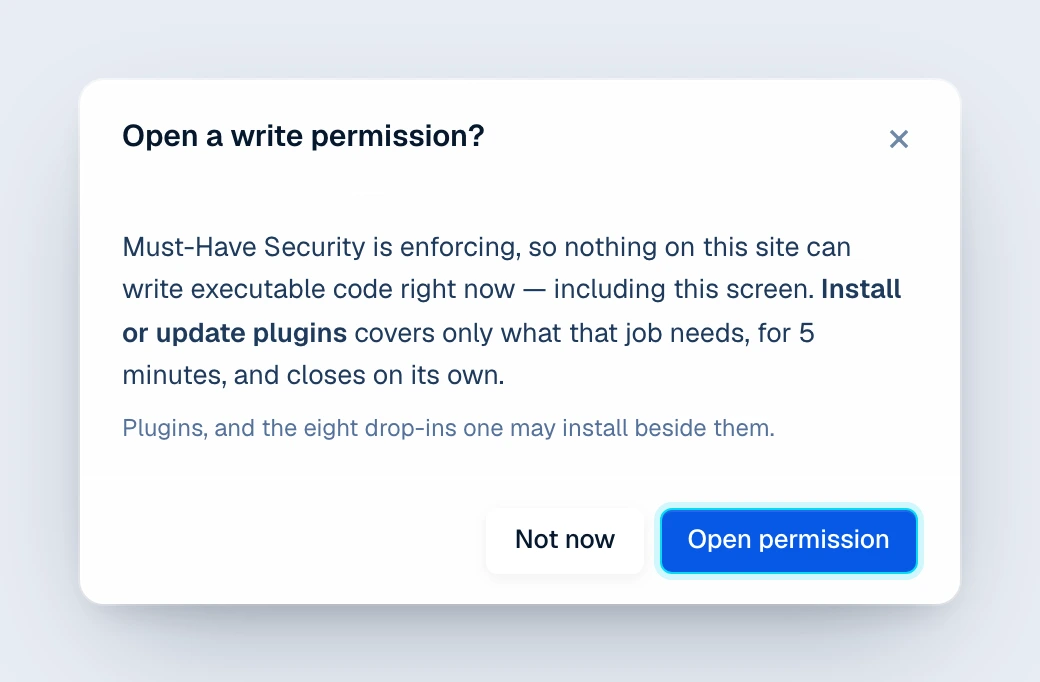
The permission is narrow. It covers the plugins folder, the drop-ins a plugin may install and the language files, lasts five minutes by default, and is honoured only for requests from your browser. It closes on its own, and it closes at once when you leave the plugin screens. But for those few minutes, the first requests after the update, the ones you make yourself while you are still on the Plugins screen, run the new code with the permission open. A dropper inside the release can use them to write files within the plugins folder.
Automatic updates reach the same point by another route. WordPress runs them from its cron, where there is no session and nobody to confirm with a passkey, so Must-Have Security lets background jobs write by default. Otherwise automatic updates would quietly stop working, and a site that stops updating is how most sites get compromised in the first place.
So the honest conclusion is this: write protection cannot keep a poisoned release out, because the release comes in through the door you open for it. What it can do is keep that door open for minutes rather than for good. The rest of the job belongs to the scanner.
The check that runs a minute after every update
With the malware scanner enabled, Must-Have Security does one more thing after every plugin or theme install and update: it scans the folder the update has just written, on its own, about a minute later.
- Every file in the folder, not only the PHP. A card skimmer hides in a JavaScript file as easily as a backdoor hides in PHP.
- Only that folder. A plugin is a few hundred files at most, so the check takes seconds, not the hours a full scan can take on a large site. Files the shared reputation database already knows are checked by their hash alone; new ones go to the classifier, and only what the classifier cannot decide goes to the AI.
- Manual updates, automatic updates and new installs. All three trigger it. A brand new plugin is the code nobody has looked at yet.
- One check for a bulk update. The minute of delay gathers updates that arrive together, so twenty plugins updated at once become one check, not twenty.
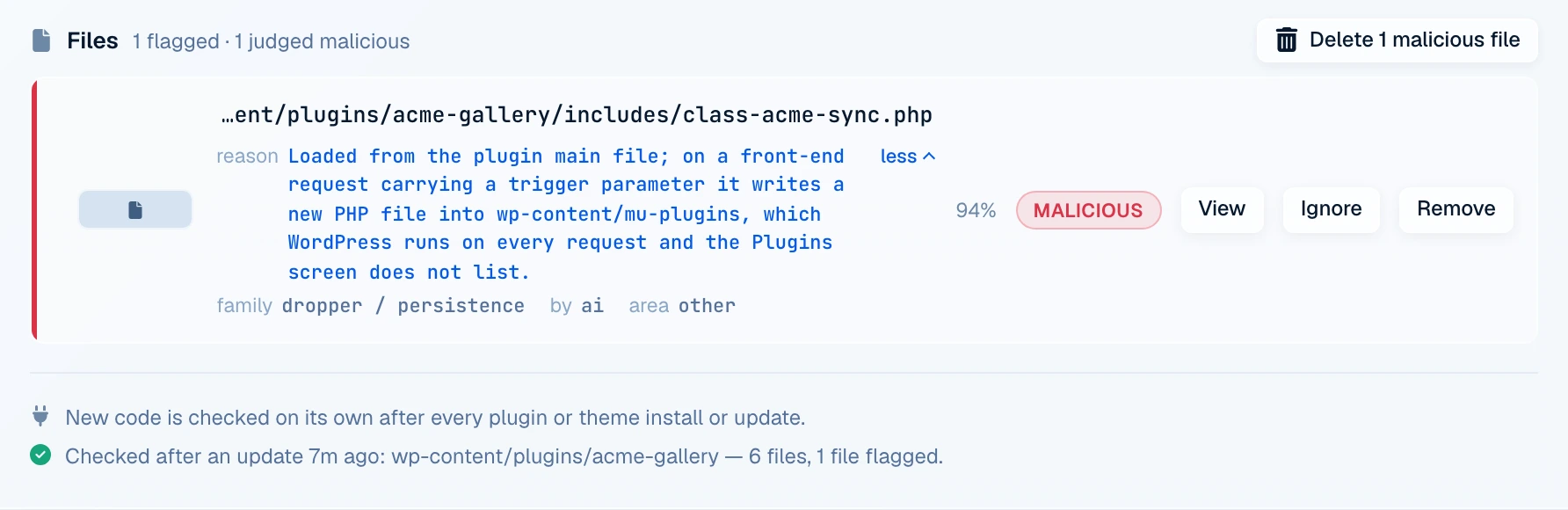
When a file is judged malicious, an e-mail goes out at once to every trusted administrator, or to the addresses you set. It names the file and what it was judged to be:
[example.com] Malicious code found: 1 file

The malware scanner judged 1 file malicious.

  - wp-content/plugins/acme-gallery/includes/class-acme-sync.php   (dropper / persistence)

Nothing has been deleted or moved.
Nothing is deleted automatically. A scanner that deletes files on its own will one day delete a legitimate one and take the site down, so the decision stays with you.
Why the malware cannot dig in
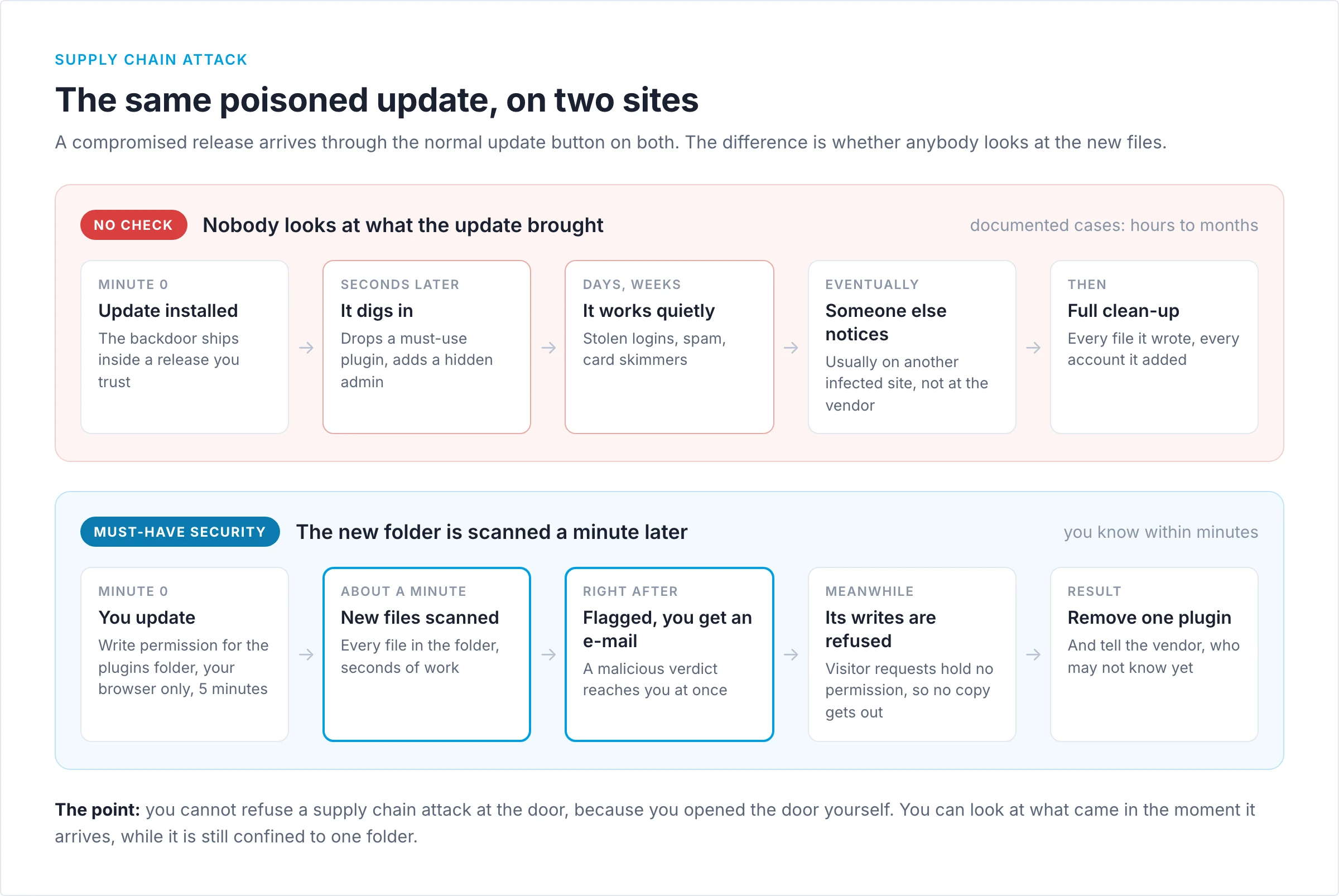
Put the two layers together and the timeline looks very different from the incidents in the table. The poisoned release lands, and for a few minutes it can write inside the plugins folder from your own requests. About a minute after the update, the scanner reads every file in that folder. Meanwhile every request from anyone else, visitors, bots and the attacker’s own callbacks, runs the new code without a permission. When that code tries to do what supply chain malware usually does next, such as dropping a must-use plugin, planting a web shell in uploads or rewriting a core file, the write is refused and logged. The Rank Math SEO PRO malware is a good example: according to Wordfence, it recreates hidden backdoors during ordinary page visits. Those are file writes made from visitor requests, which is exactly what gets refused.
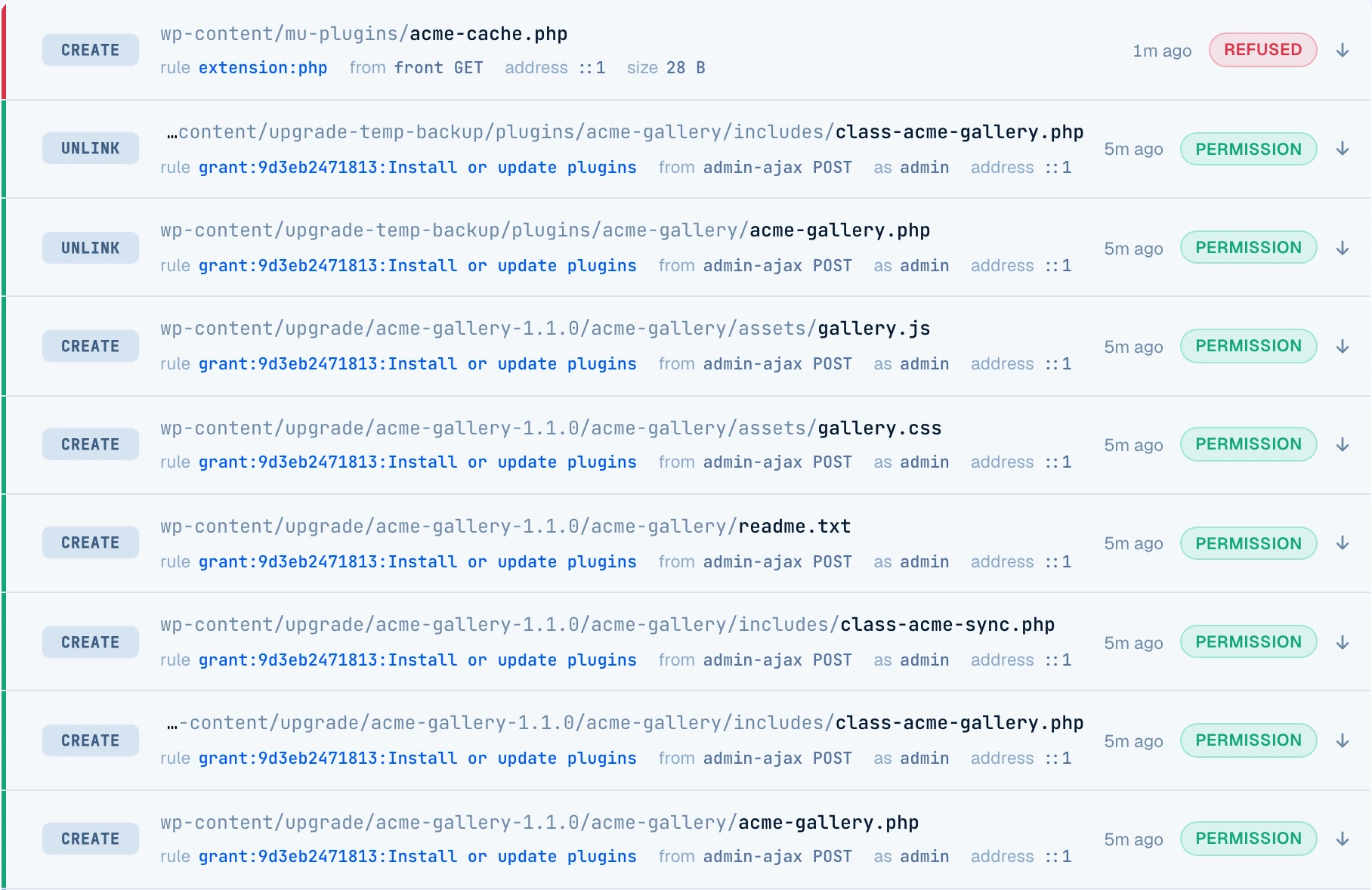
So the e-mail usually reaches you while the infection is still exactly where it arrived, inside one plugin folder. The clean-up is then short: remove the plugin or roll back to the previous version, and look through the file log for anything written while the permission was open. Then tell the vendor. Judging by the incidents above, there is a fair chance you are the first to know.
The one route that stays open
Background jobs. By default Must-Have Security lets WordPress cron write code, so that automatic updates keep working, which also means code that schedules itself a cron job can write from there. Those writes are never silent: each one appears in the file log marked as unattended, and new or unclaimed cron events appear on the Scheduled jobs screen. If your server runs WordPress cron from the system scheduler with WP-CLI, switch off Let WordPress background work write code on the File rules screen, and that route closes too.
What to set up
- Enable the malware scanner on the Malware scan screen. The check after updates and the alert e-mail are on by default, but they do nothing until the scanner is enabled, because the scanner sends file content off the site for analysis and needs your consent first.
- Make sure the alert reaches someone. Left empty, it goes to every trusted administrator. If security mail is read by someone else, or by a shared inbox, add those addresses on the Advanced screen.
- Keep updating. Switching updates off to avoid supply chain attacks trades a rare risk for a common one: published vulnerabilities in plugins nobody patched.
- When the alert arrives, open the file from the Malware scan screen, deactivate and remove the plugin or roll it back, check the file log for what was written during the update, and report it to the vendor.
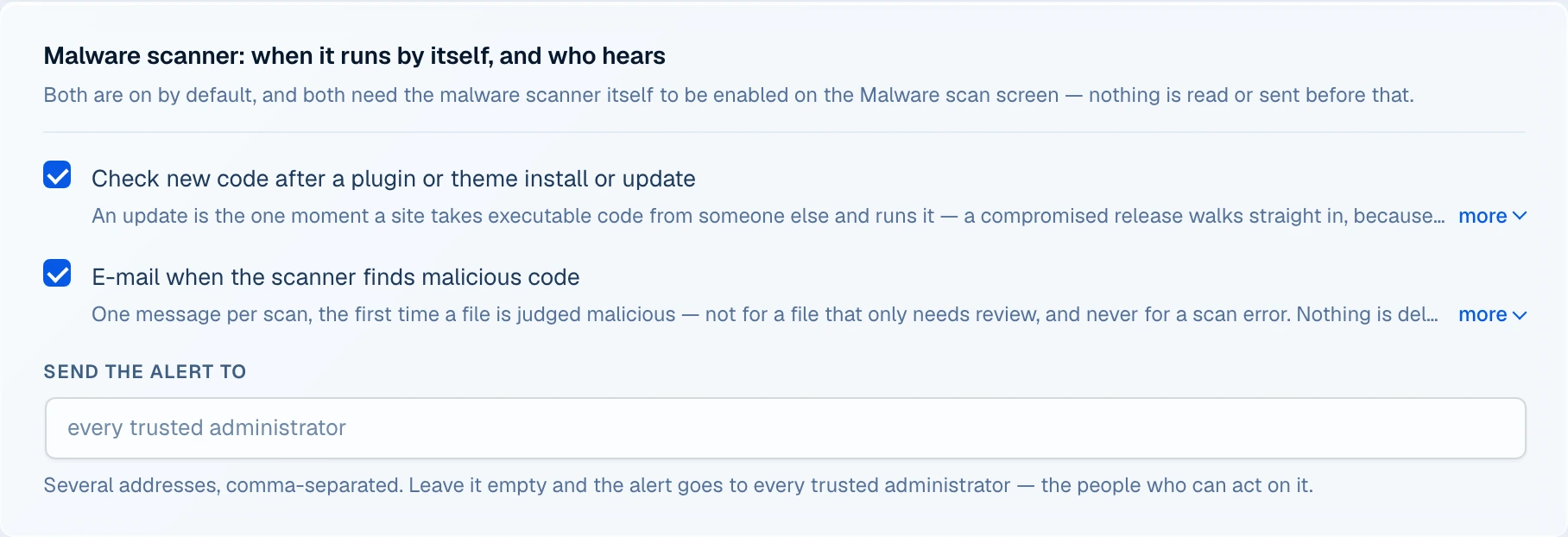
Must-Have Security does all of this out of the box: it checks every plugin and theme update about a minute after it lands, keeps visitor requests from writing code, and e-mails you the moment a new release looks malicious. It runs on ordinary shared hosting, with no server module to install.
Frequently asked questions
What is a supply chain attack in WordPress?
An attack in which malicious code is added to a legitimate plugin or theme before it reaches you: through a hijacked developer account, a compromised build or update server, or a plugin sold to a new owner. The site installs it through the normal update process, so nothing about the update itself looks wrong.
Can a web application firewall stop a supply chain attack?
No. A WAF inspects requests that visitors send to your site. A poisoned update is downloaded by your own server from the vendor’s, so the firewall in front of the site never sees it. The code has to be examined after it arrives.
Should I turn off automatic updates?
No. Unpatched plugins with known vulnerabilities compromise far more sites than poisoned releases do, and the check after updates covers automatic updates as well as manual ones.
Does the check slow down updates?
No. It runs in the background about a minute after the update, not in the request that performs it, and a plugin folder takes seconds.
What leaves my site during the check?
Only what cannot be decided locally. Plain assets with no code in them are never sent, files the reputation database already knows are checked by hash, and only unknown files that could run are sent for analysis. Paths on the never-send list, such as wp-config.php and .env files, are not sent at all.
Does it catch every malicious release?
No scanner catches everything, and we do not claim this one does. What changes is the timing: the new code is examined while it is still contained in one folder, instead of weeks later on somebody else’s site.
The takeaway
You cannot refuse a supply chain attack at the door, because you open the door yourself every time you update. What you can do is make sure the door is open for minutes, that nothing else on the site can write code while the release settles in, and that somebody looks at the new files right away. In the documented cases above, the sites that installed the poisoned releases were the first to run the malware. With a check after every update, they can be the first to report it too.
The check after updates is part of Must-Have Security, next to the file write firewall and the malware scanner. For the most recent example of a compromised vendor release, see the Wordfence notice on Rank Math SEO PRO 3.0.123.